
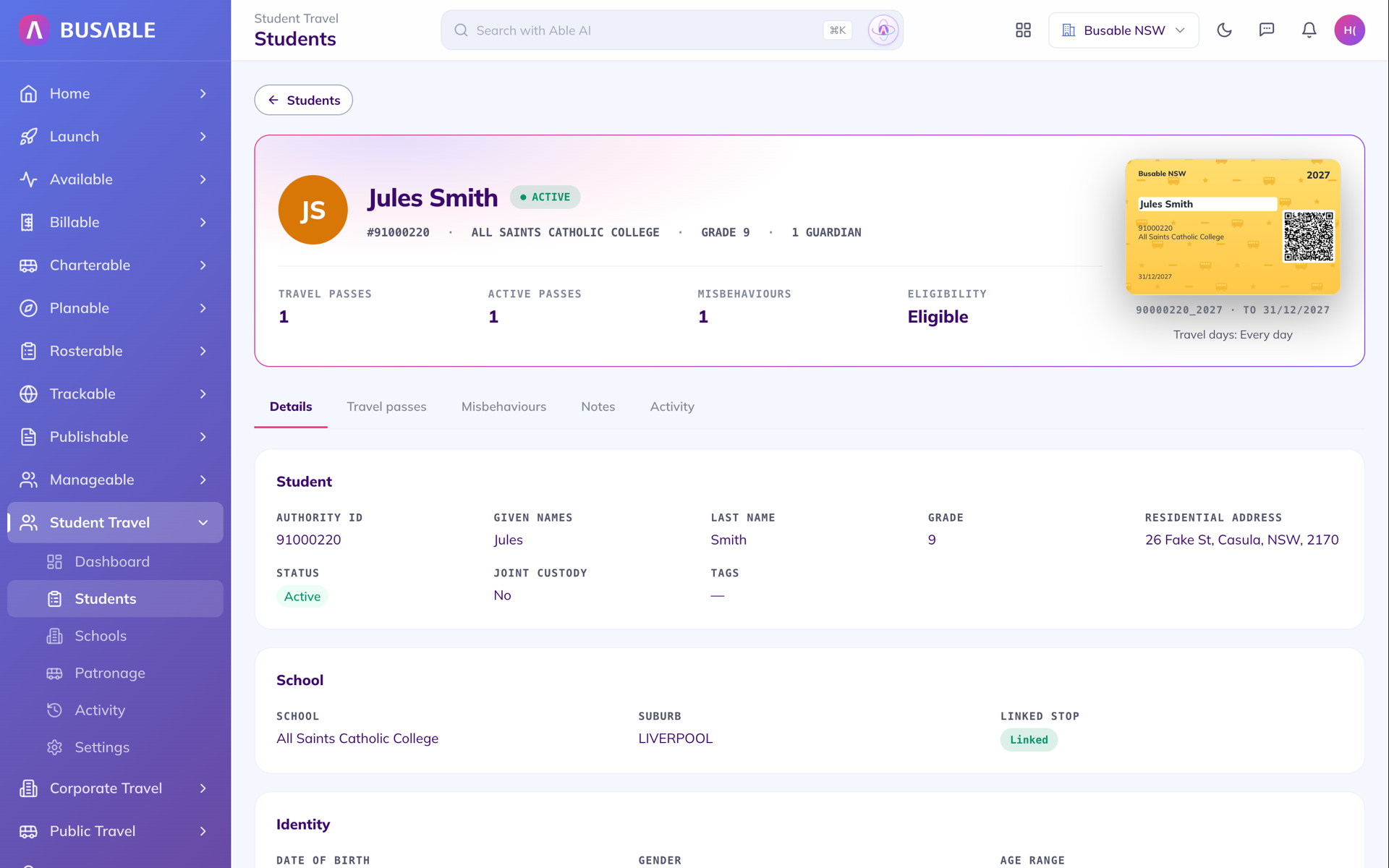
The student record
One record for each student: school, grade, guardian and pass, with counts for passes, incidents and eligibility at the top.
Student travel management in one system: the student file from the government agency, passes and letters, misconduct, messages to families, and the Busable Go™ apps for parents and schools. Less admin in the office, and fewer calls about the bus.
One record holds everything about a student: school and grade, guardians and their contact details, travel passes, eligibility, incidents, office notes and a full activity history. Personal details are kept separate from the rest of the record and only appear to staff whose role allows it. Every change from a government file goes through review first, and every saved change is recorded with who made it and when.
One record for each student: school, grade, guardian and pass, with counts for passes, incidents and eligibility at the top.
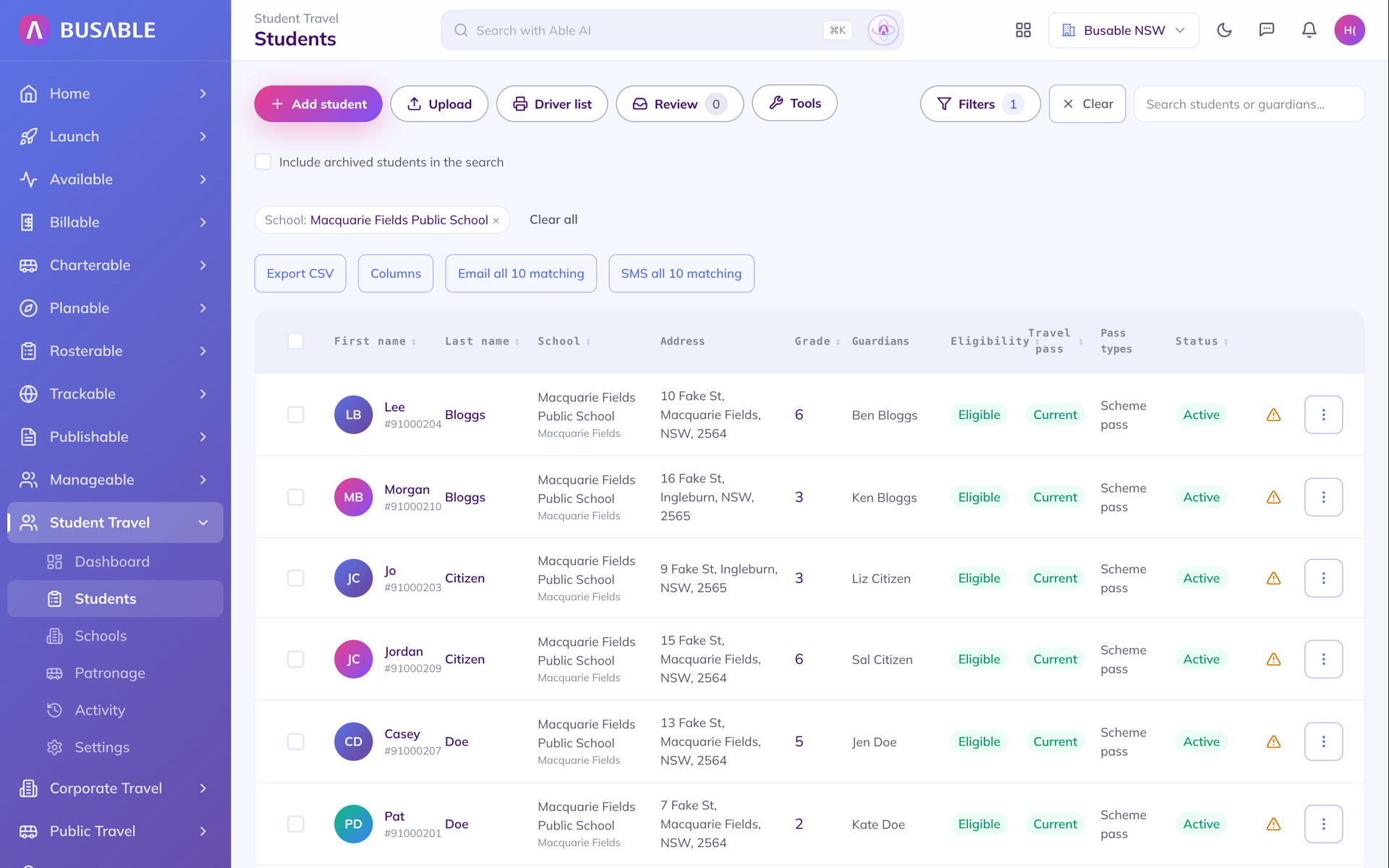
Every student at a school, with their address, grade, guardian, eligibility, pass and status.
Select the students, from a handful to every student you carry, and print their passes to a PDF or export a CSV for your card printing software. Each pass is marked printed, so the office can see what is still to go out. Print a single pass and the guardian letter comes with it, with your phone number and email on the letterhead.
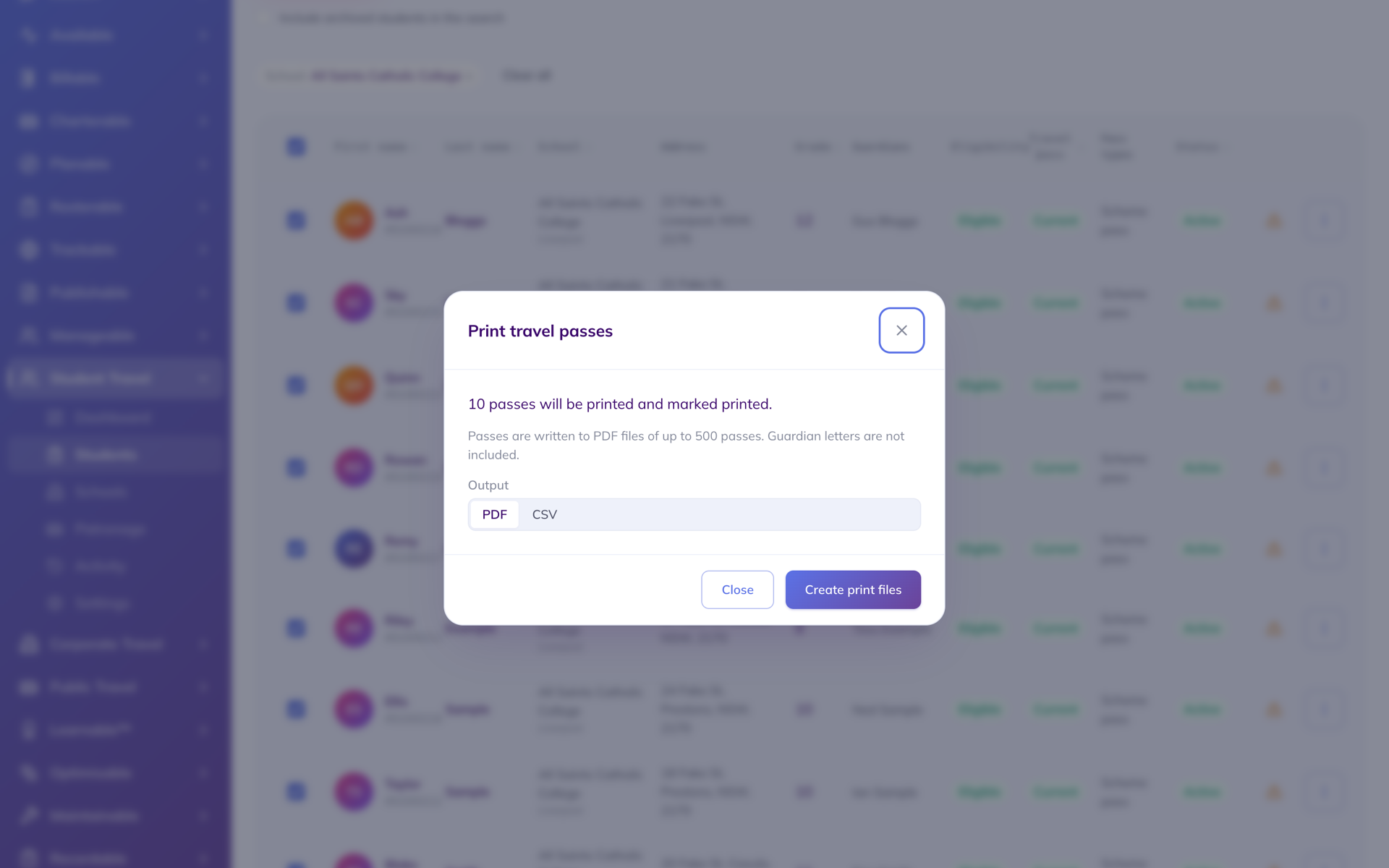
Ten students at one school selected. Their passes go to a PDF, or a CSV for card printing software, and each one is marked printed.
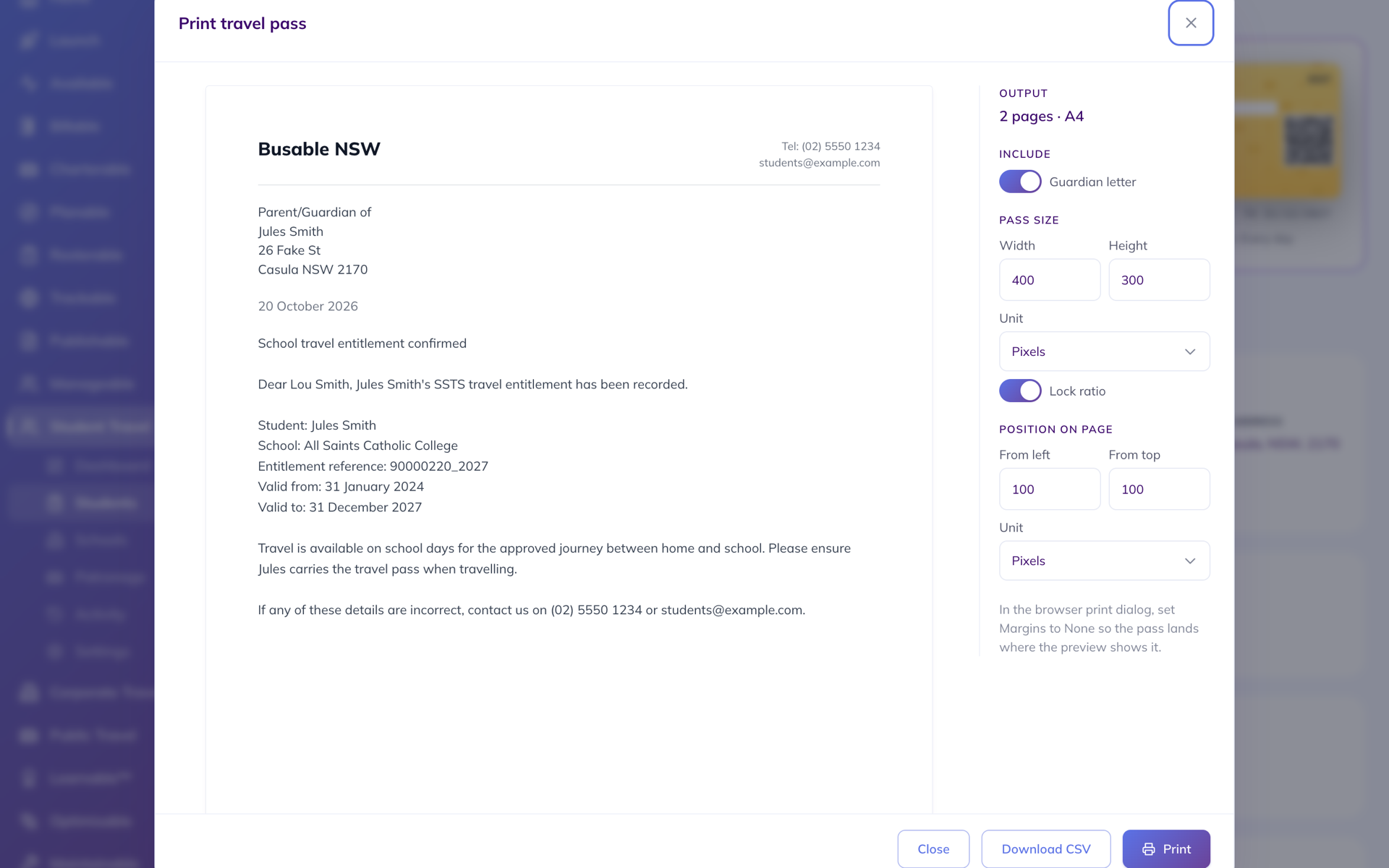
A single pass prints with the guardian letter: the entitlement, the school and the dates, and the office's phone and email if anything is wrong.
Filter to a school, a route or a group of students, then SMS or email their guardians in one go. An office note goes on every student's record, so anyone in the office can see who was told what.
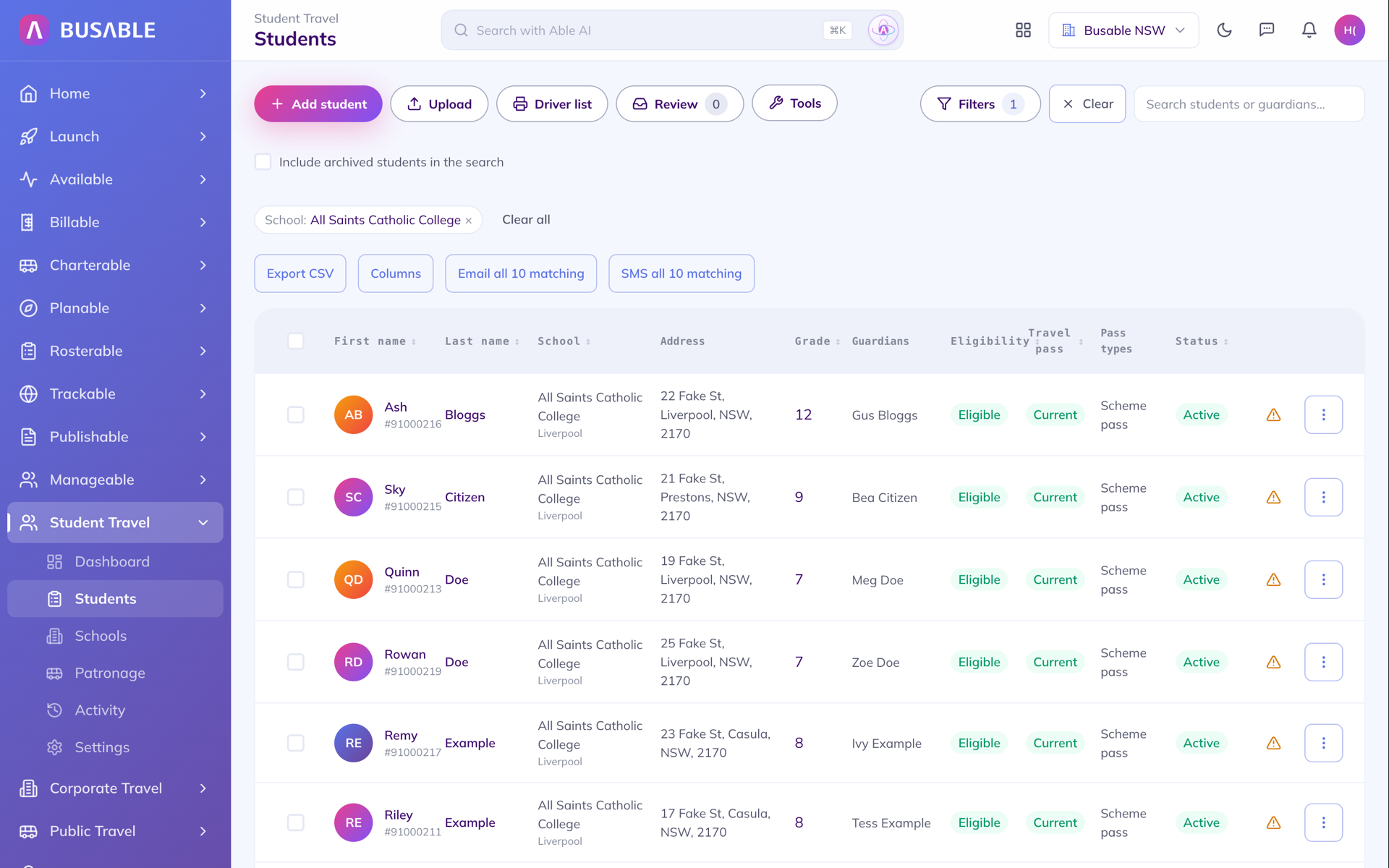
Ten students at one school, with Email all and SMS all for their guardians.
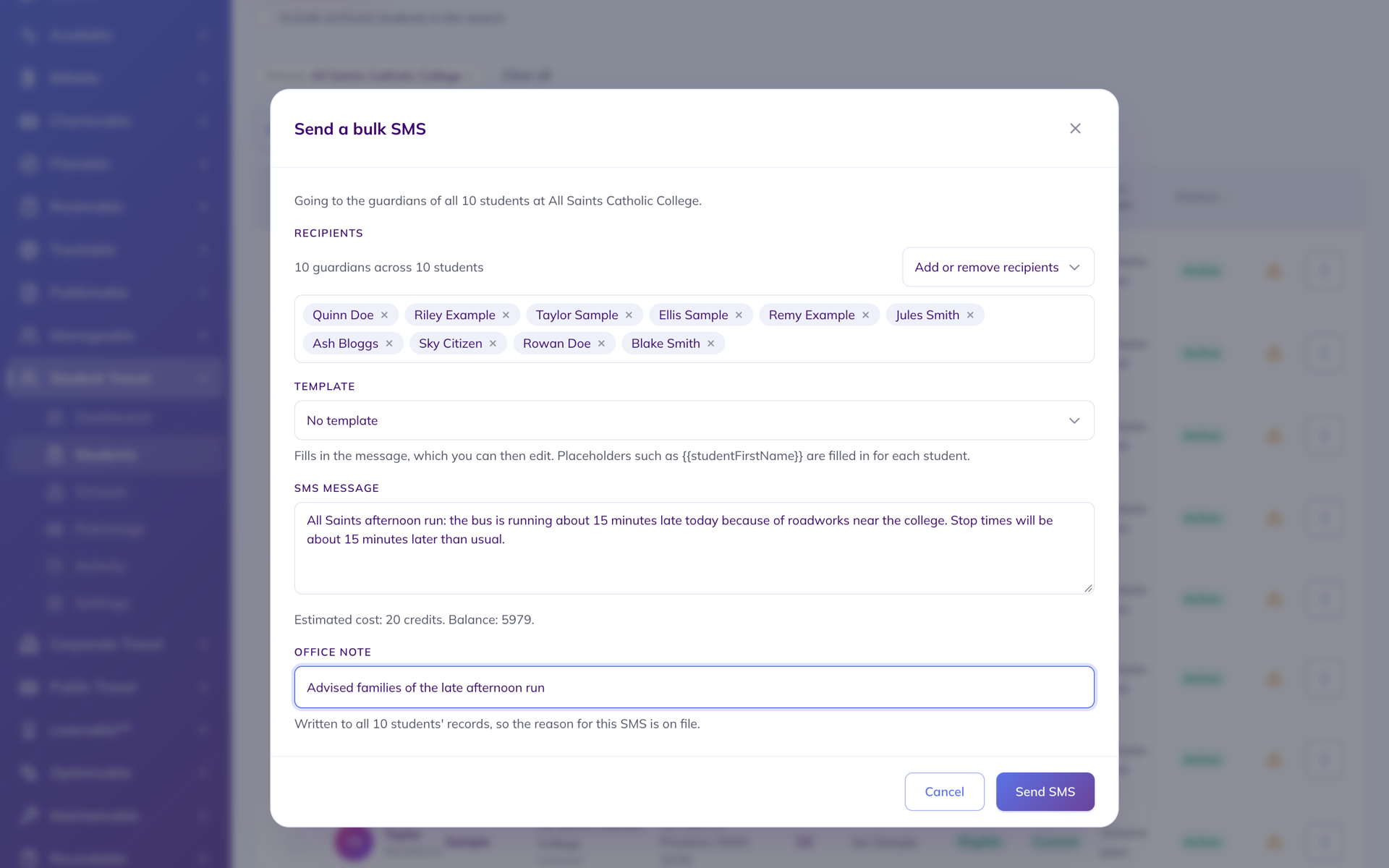
A late-running notice to the guardians of all ten students, with the cost in credits shown before sending and an office note saved to each student's record.
Total students, boarding rate, no-show and go-show rates, and per-service utilisation across all of your school contracts. Filterable by period, school, and route.
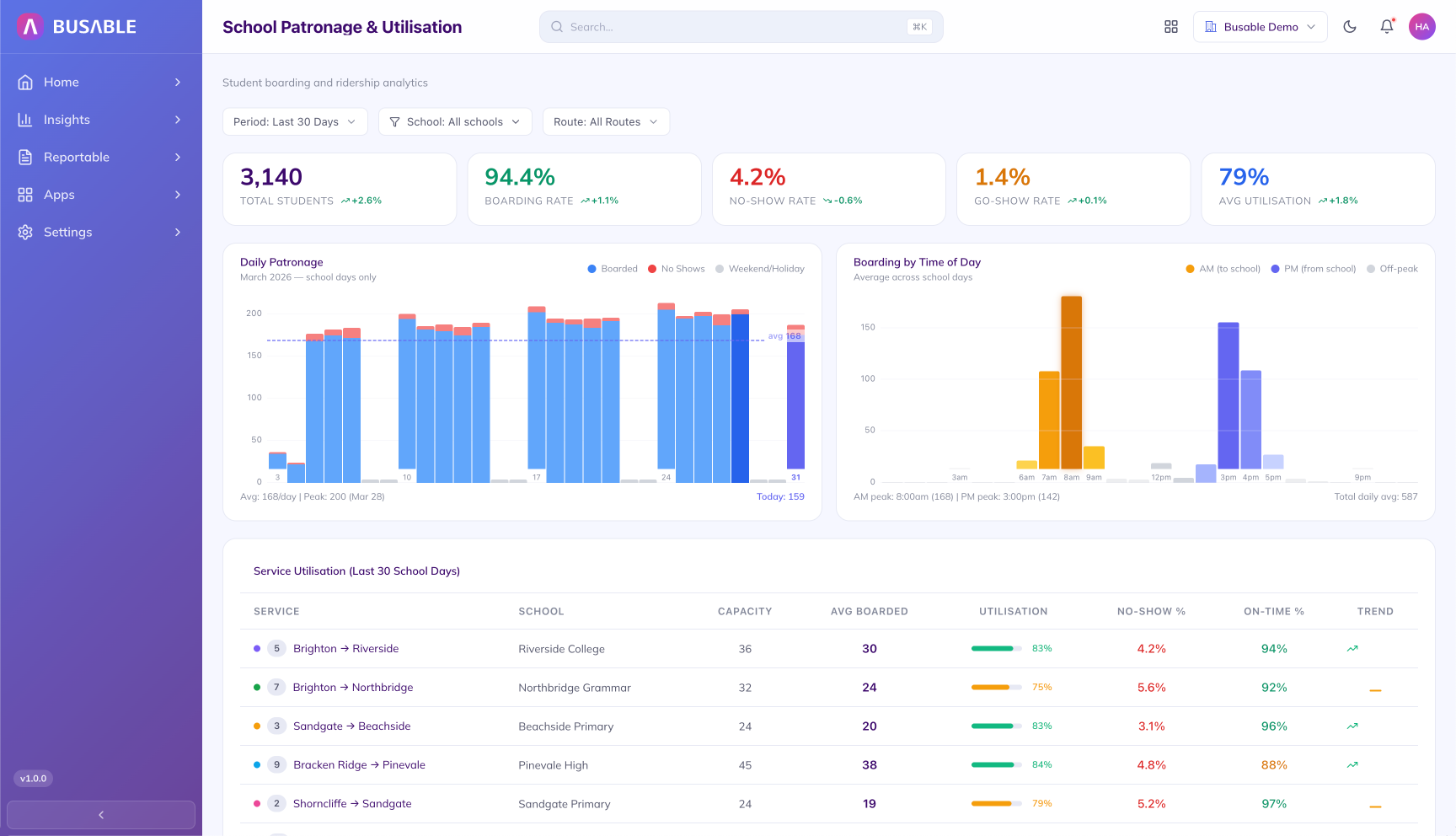
Total students, boarding rate, no-show rate, go-show rate, and average utilisation across the whole contract. Daily patronage and AM/PM boarding charts plus a per-service utilisation table. Period, school, and route filters at the top of the screen.
Each state runs school travel its own way. Busable is set up for yours: the student file you receive, the eligibility statuses you work with, and the rules you report against.
TfNSW sends every student again in every file. Busable shows you only what changed, such as the family that moved or the parent who applied twice. Nothing is written to a student until you save it.
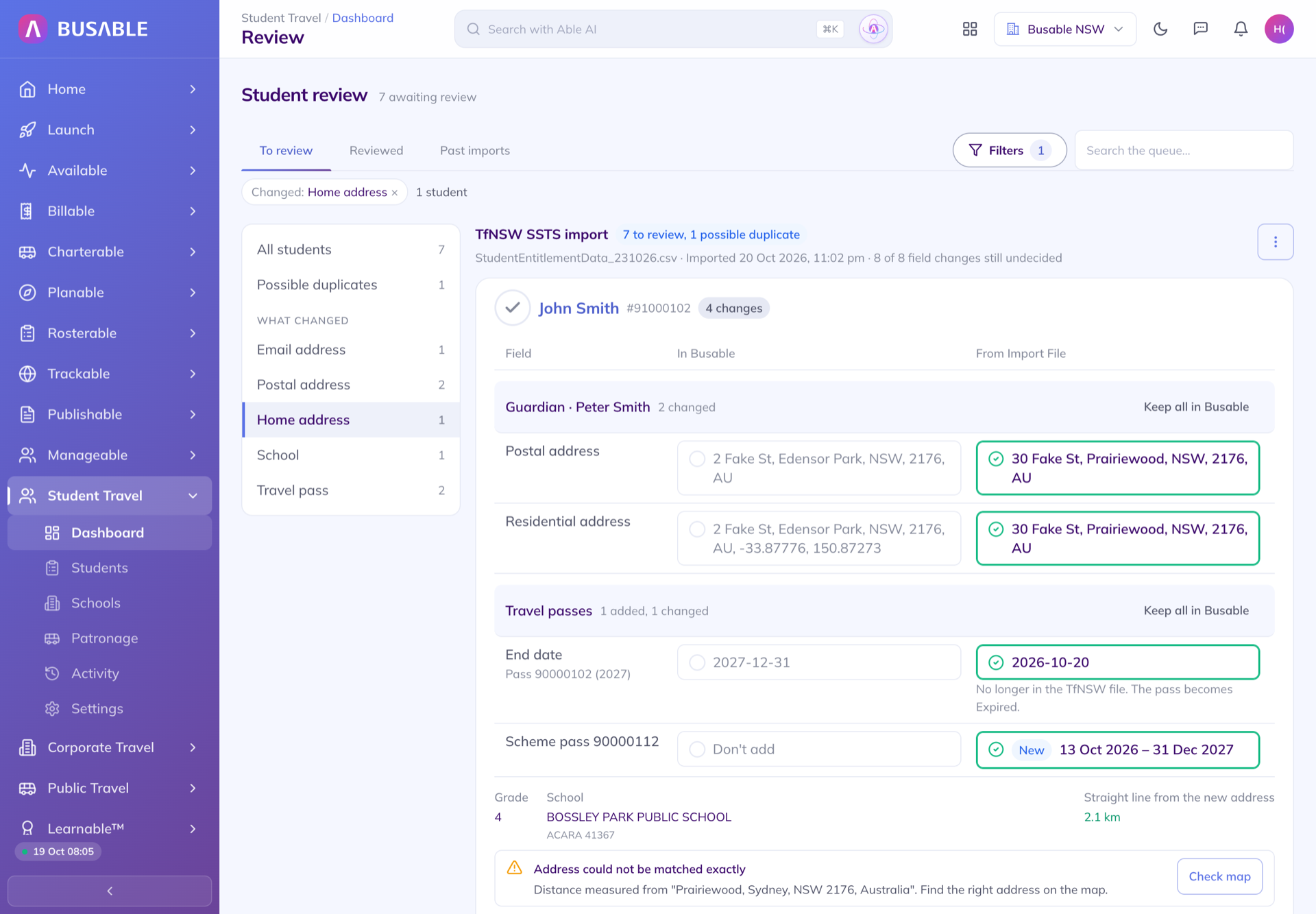
John Smith's household has moved to Prairiewood. His old pass ends on the import date because it is no longer in the TfNSW file, the new pass is added, and the new address is 2.1 km from school, over the 1.6 km threshold for Years 3 to 6.
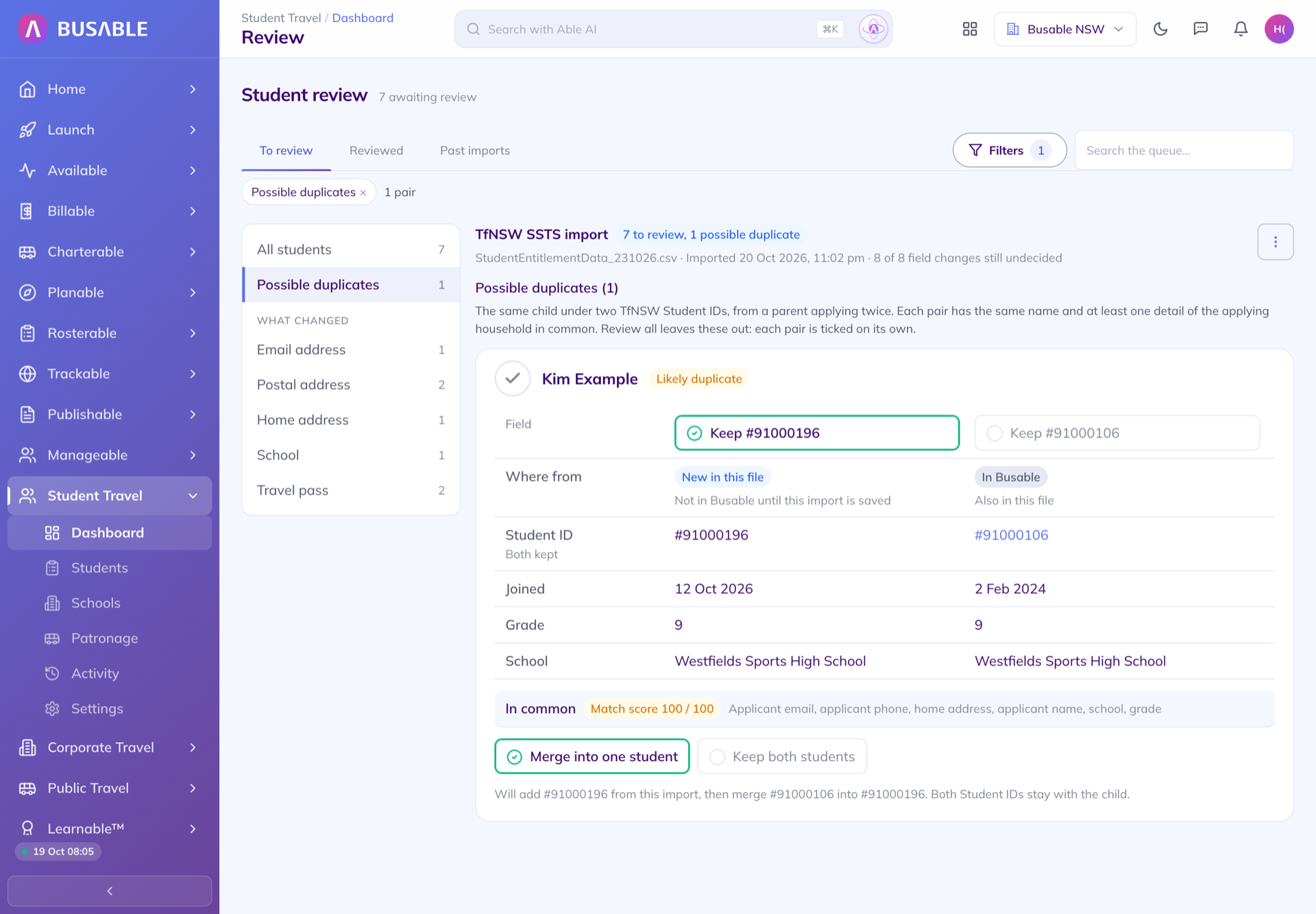
Kim's parent applied twice. The two records share the applicant's email, phone, name, home address, school and grade. Merging keeps both Student IDs with the one child.
Record an incident against TfNSW's own categories and behaviours, and the outcome on the scale TfNSW applies, from a soft warning to a ban. The letter to the parent is written from the record, ready to print or email when you choose to send it.
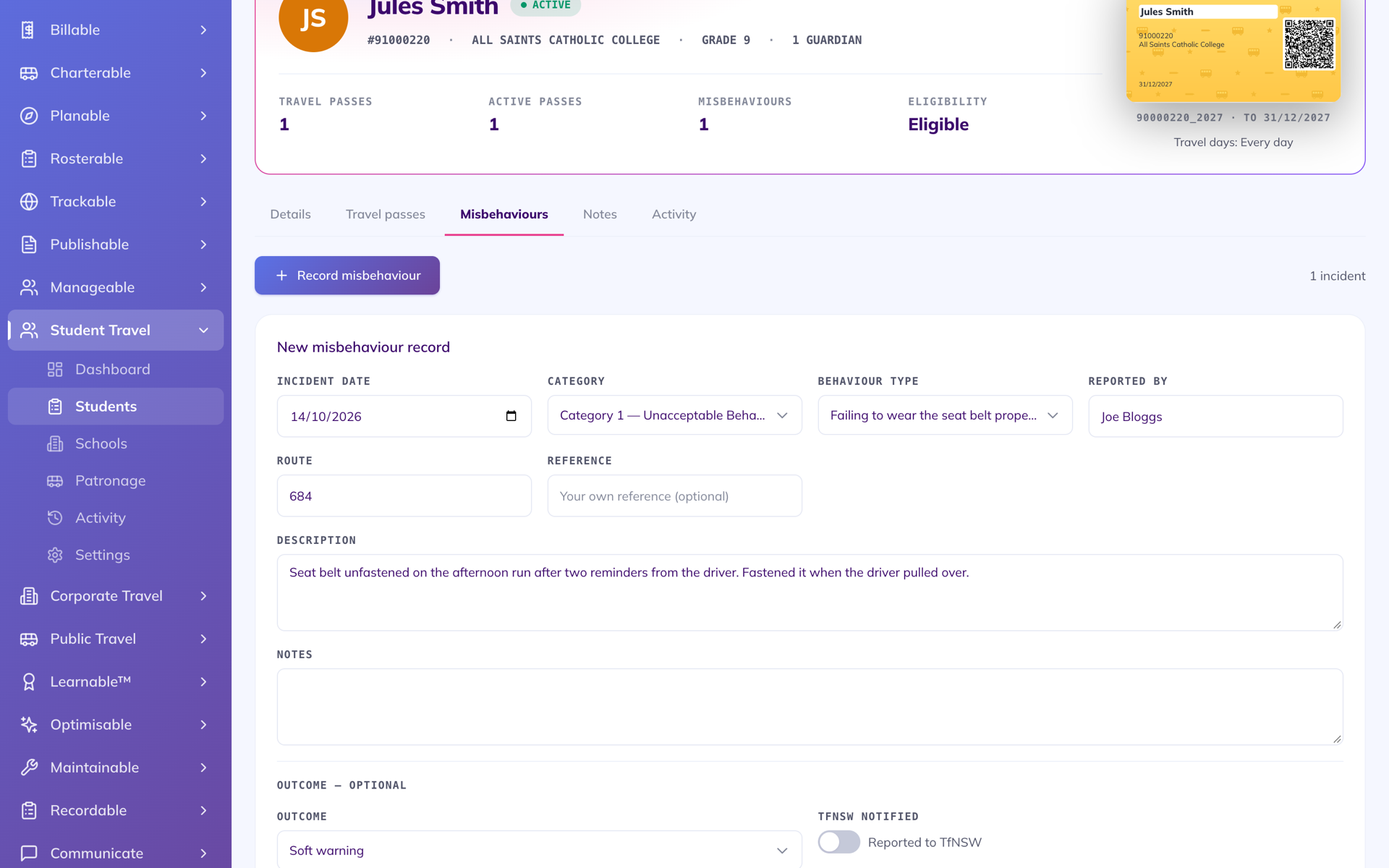
The behaviour list is TfNSW's wording for each category, and the outcome runs from a soft warning to a ban.
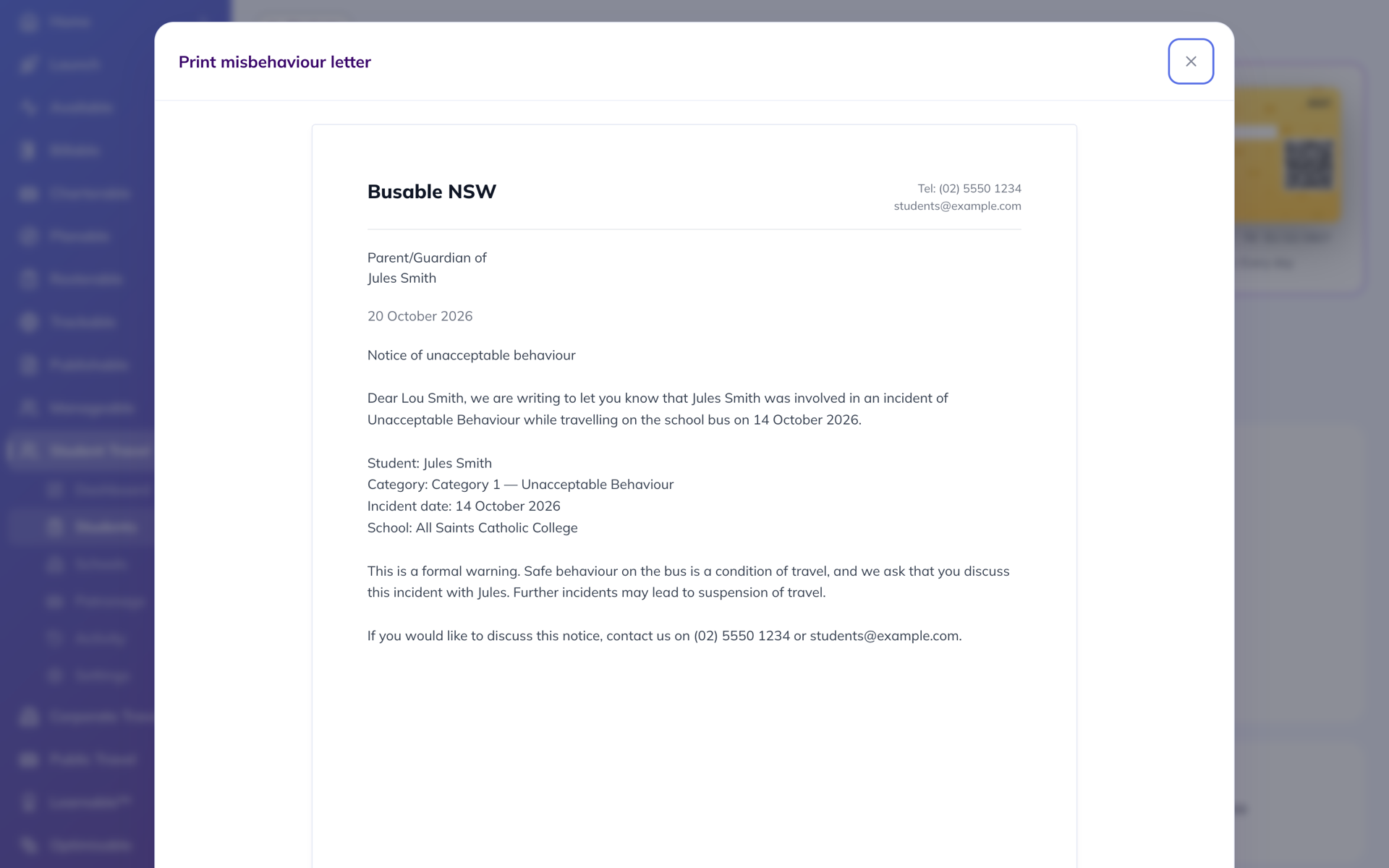
A notice of unacceptable behaviour to Jules's guardian, with the incident details and the office's phone and email.
Busable reads TMR's weekly KM and SST files and shows each student's verification status: Verified, Prelim Verified or Dropped Off. Each student keeps the school they attend and their subsidy school, their bus number, and next year's enrolment.
Parents register by scanning a QR code on a welcome letter from the school. The app pulls student details directly from the school's records.
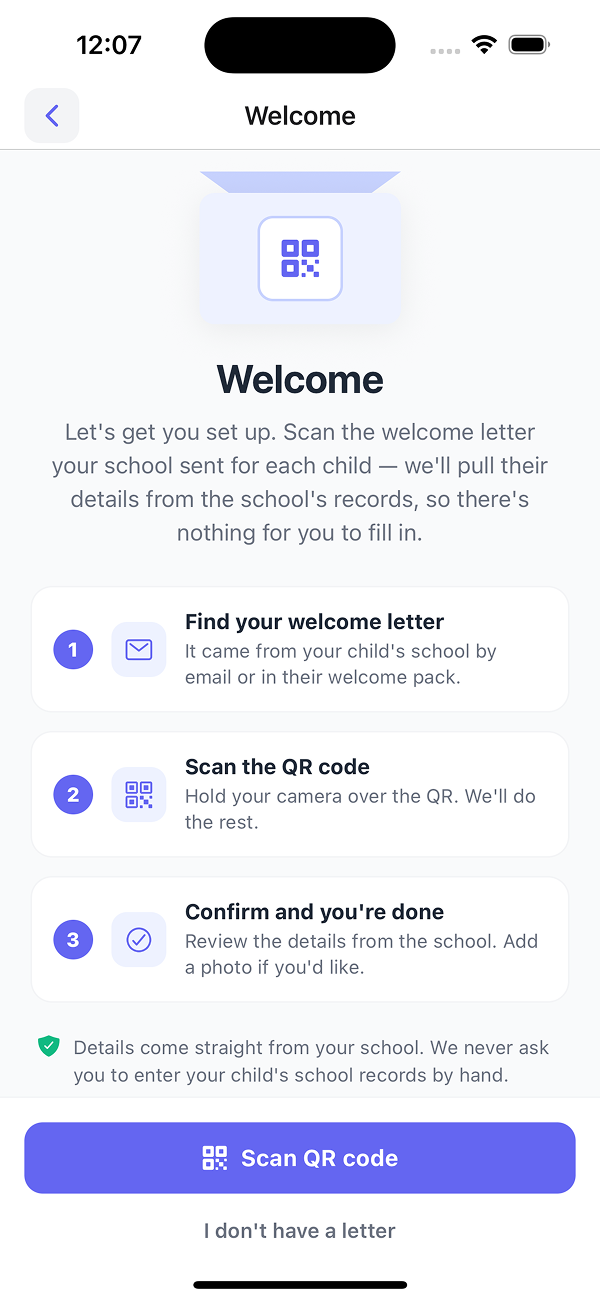
Parents find the welcome letter from the school, scan the QR code, and confirm the student's details. No forms to fill in.
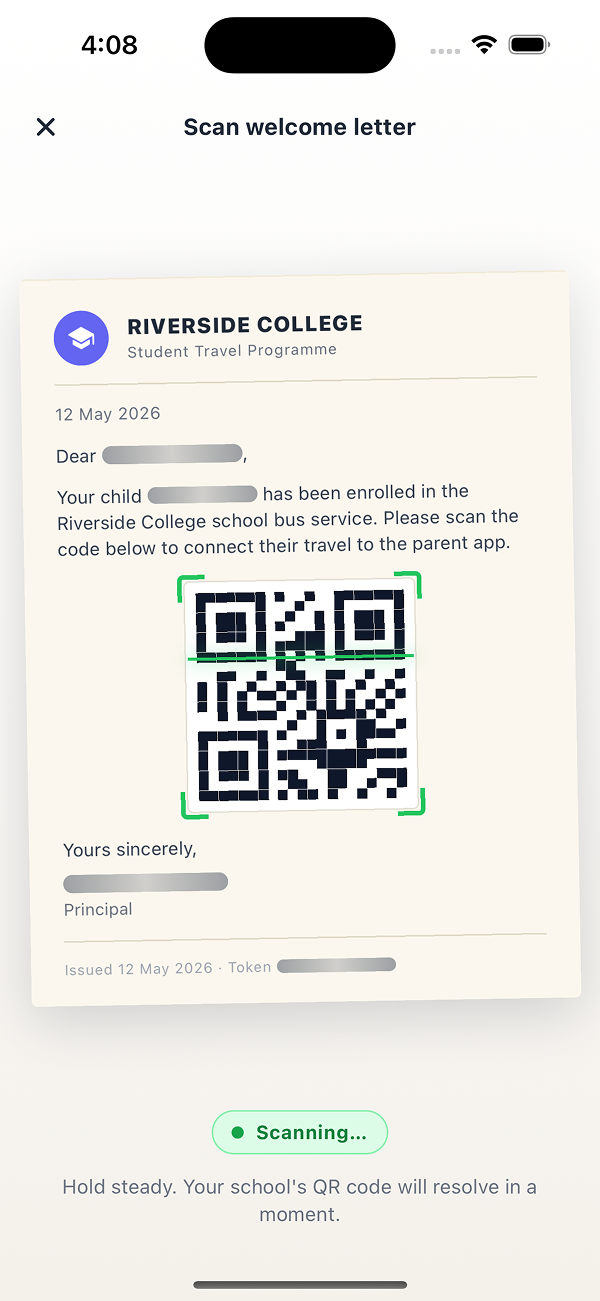
The QR code connects the parent to the correct student, route, and school account. No manual data entry on either side.
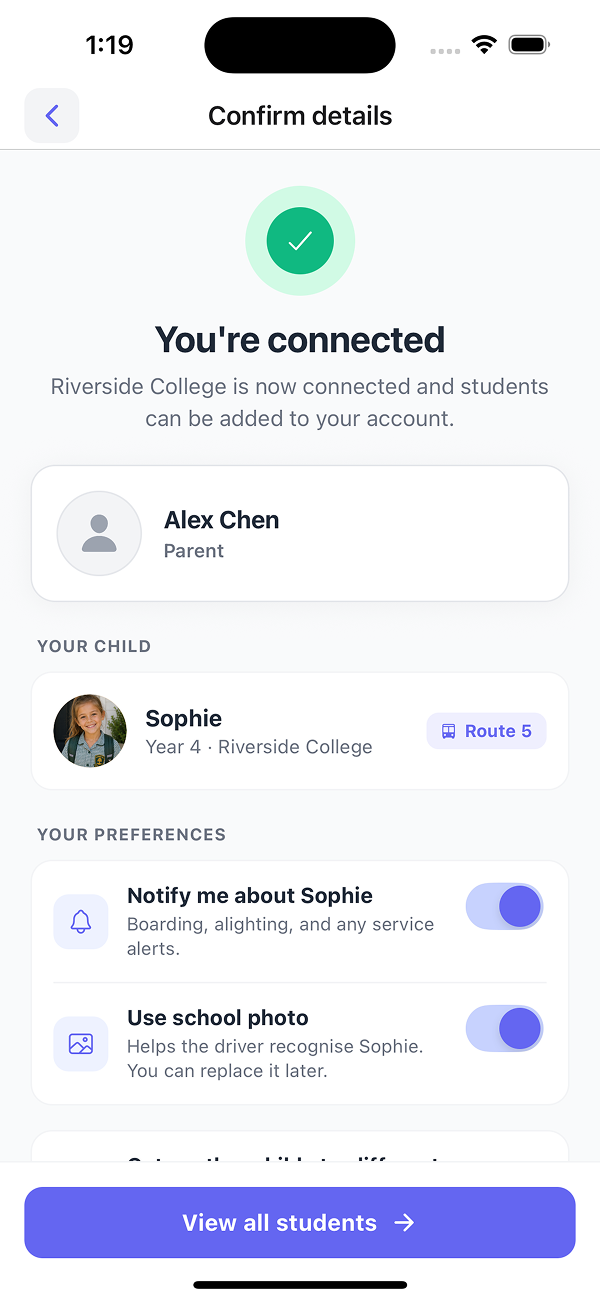
The student appears on their assigned route with notification preferences set by the parent. Most families finish setting up without needing to call your office.
Parents book single trips or a full term themselves. Seat counts and the per-service manifest update as bookings are confirmed.
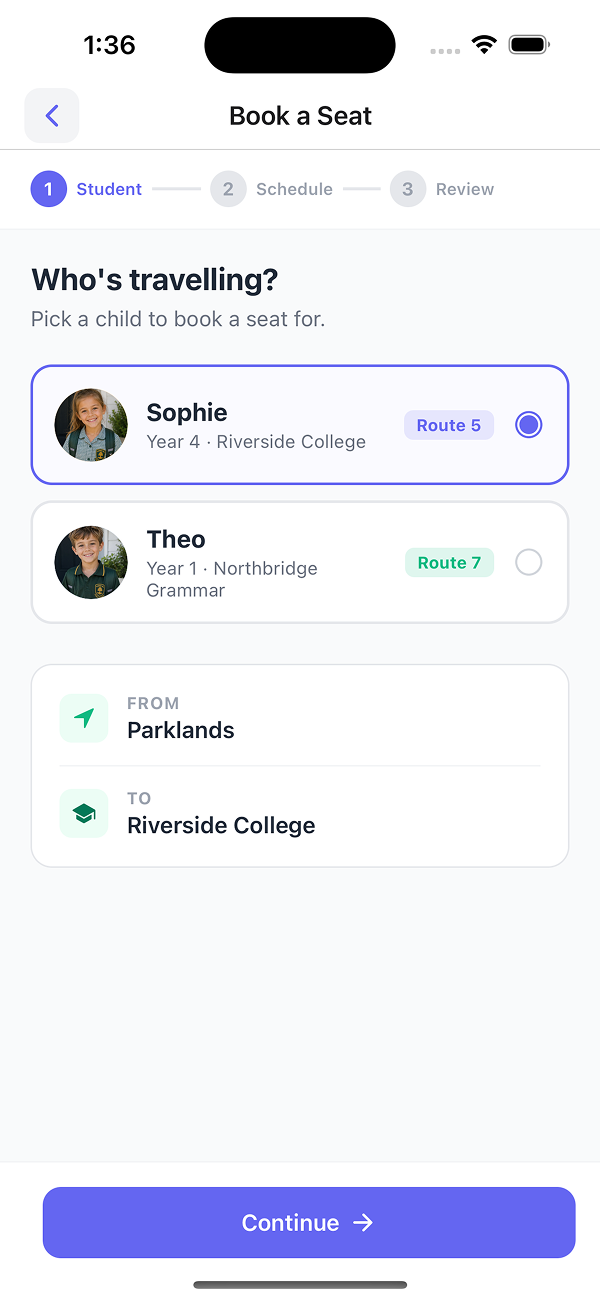
The parent selects the child. Route, pickup, and school are pre-filled from setup.
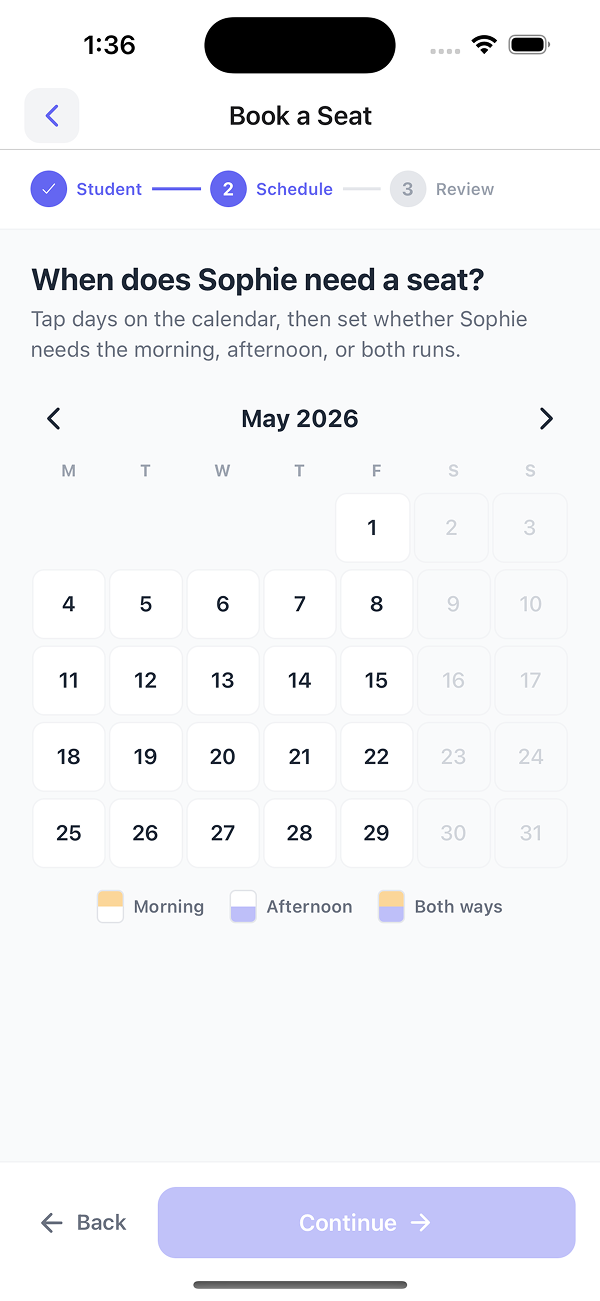
Parents pick AM, PM, or both runs across the calendar. Non-service days are disabled to prevent invalid bookings.
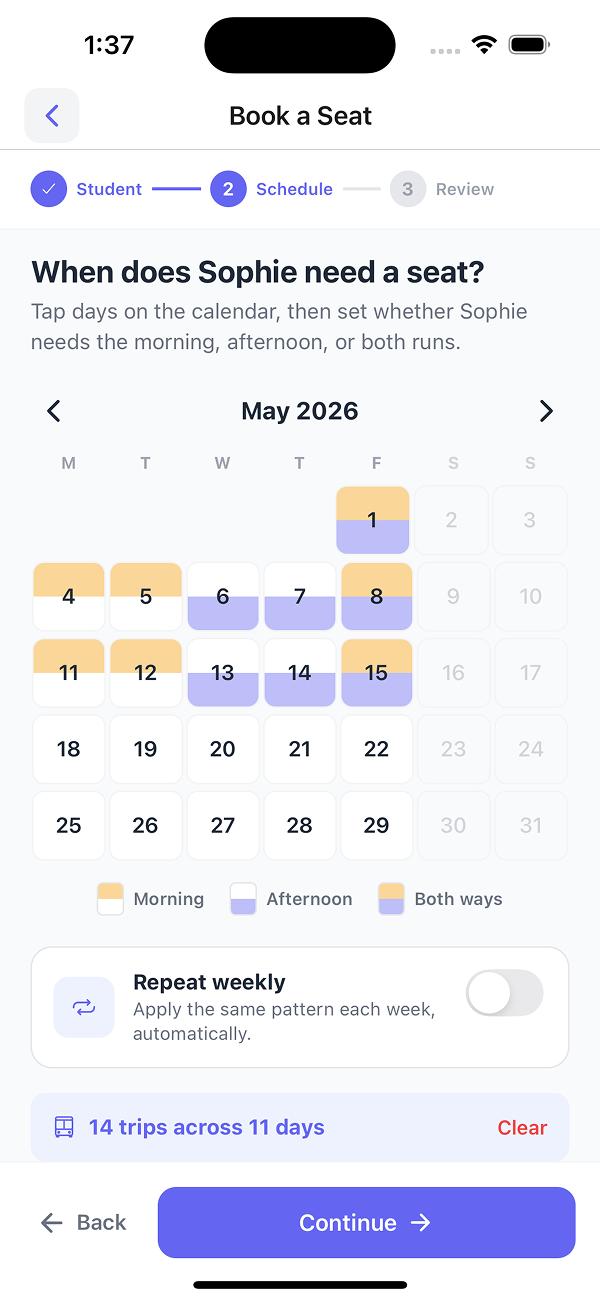
Selected days and total trip count update as the parent taps, so the volume they are committing to is visible before confirmation.
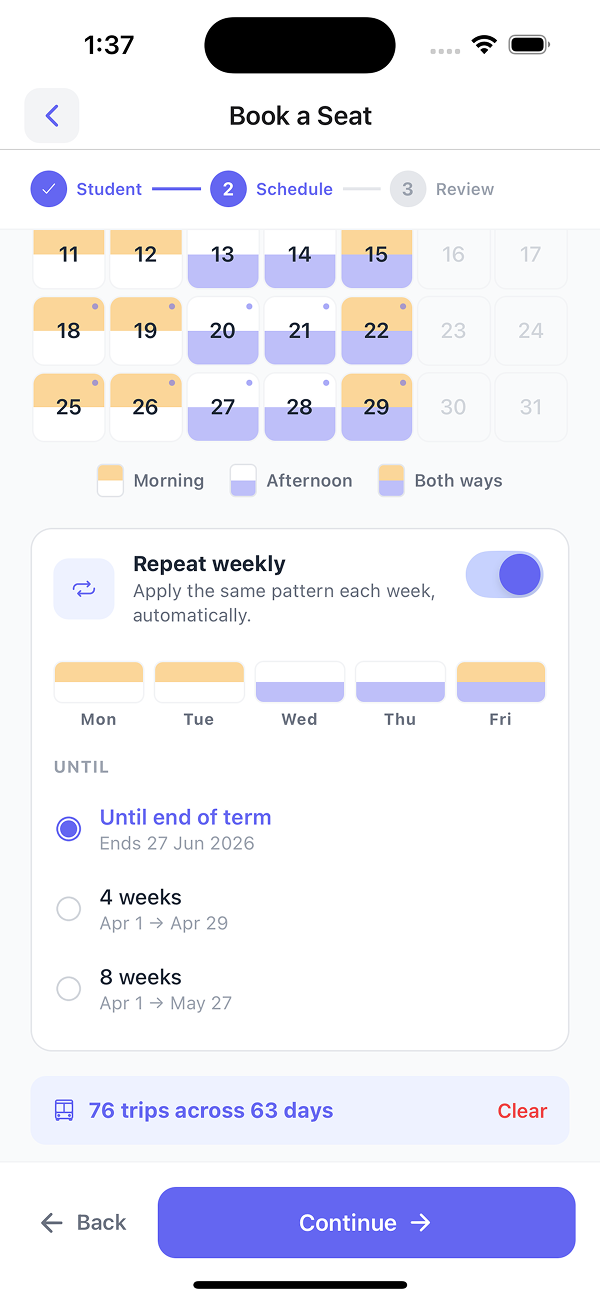
A single toggle applies the same weekly pattern through to the end of term. Long bookings -- for example, 76 trips across 63 days -- complete in one transaction.
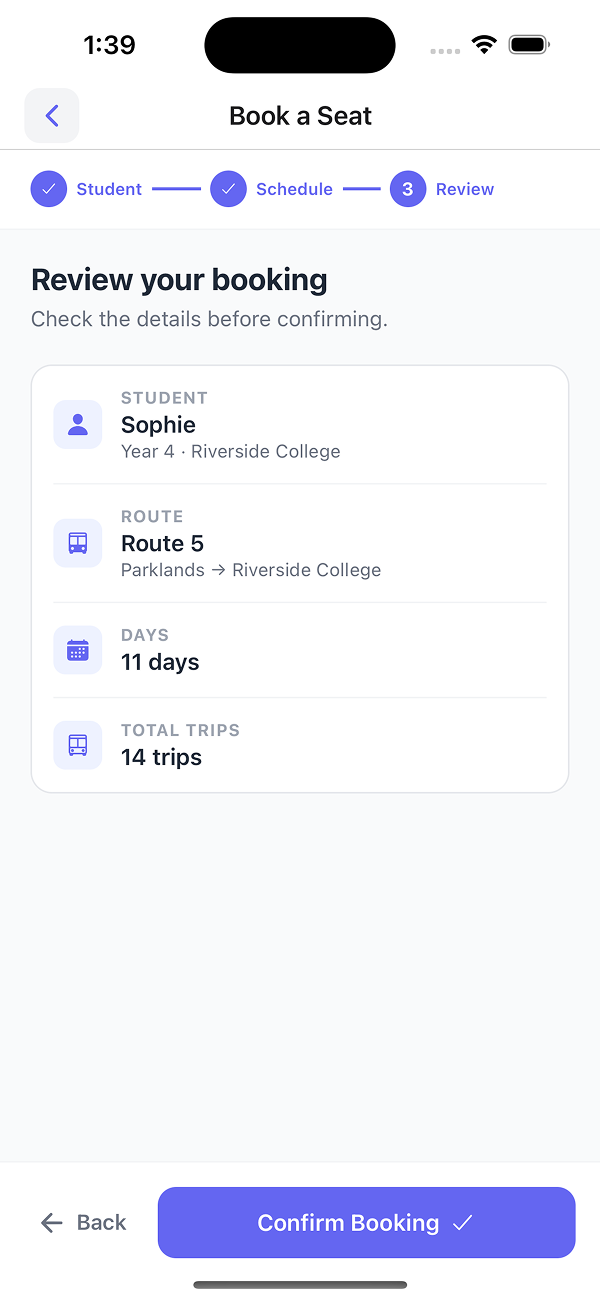
Student, route, days, and total trip count are displayed before the parent confirms. Reduces post-booking disputes.
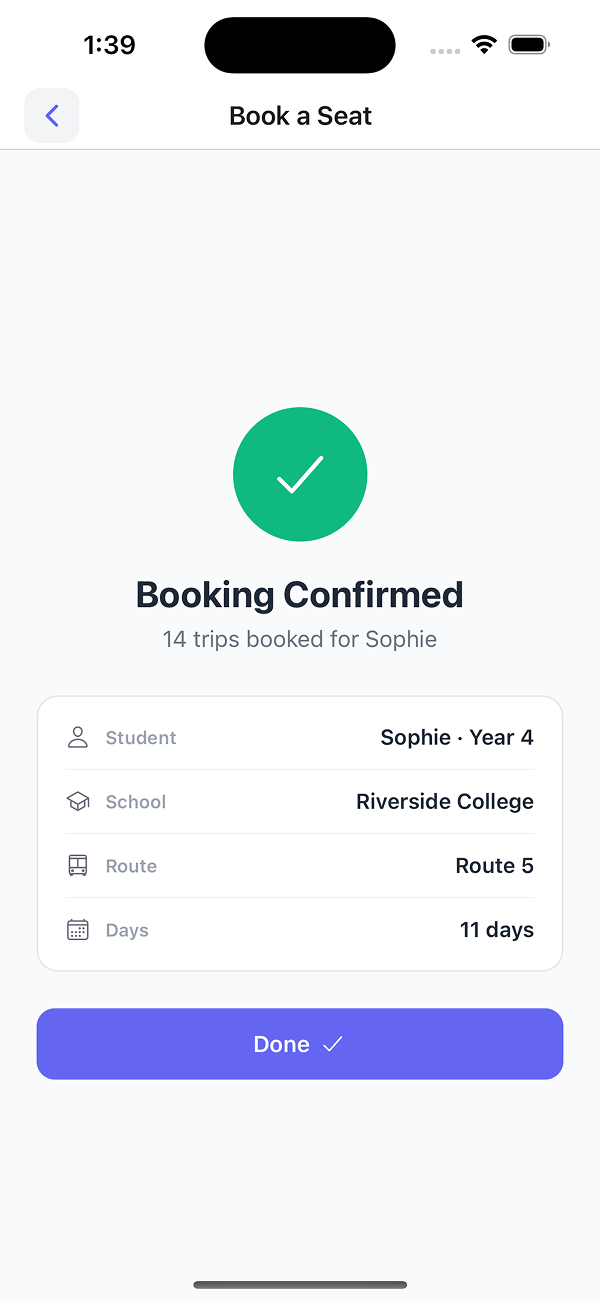
A reference number is issued for every trip. The booking is added to the per-service manifest and seat counts your driver and dispatch already use.
Upcoming, past, and cancelled bookings with reference numbers. Reduces queries about whether trips were confirmed or completed.
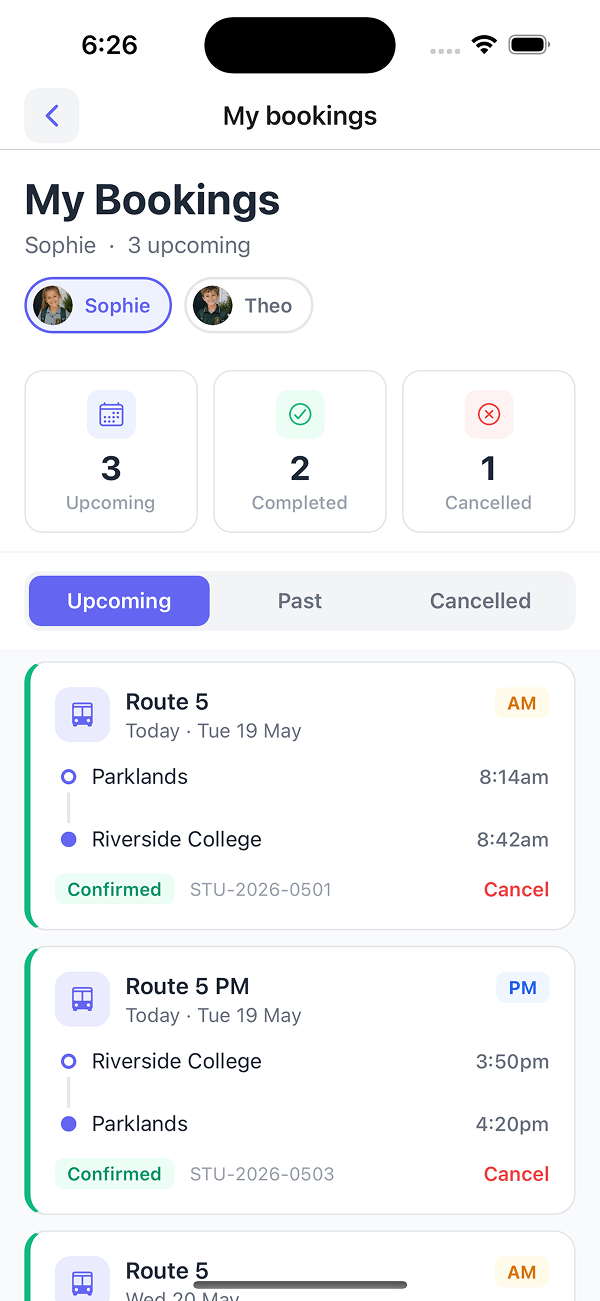
AM/PM, pickup and drop-off times, reference number, and one-tap cancel per booking. Parents switch between students at the top.
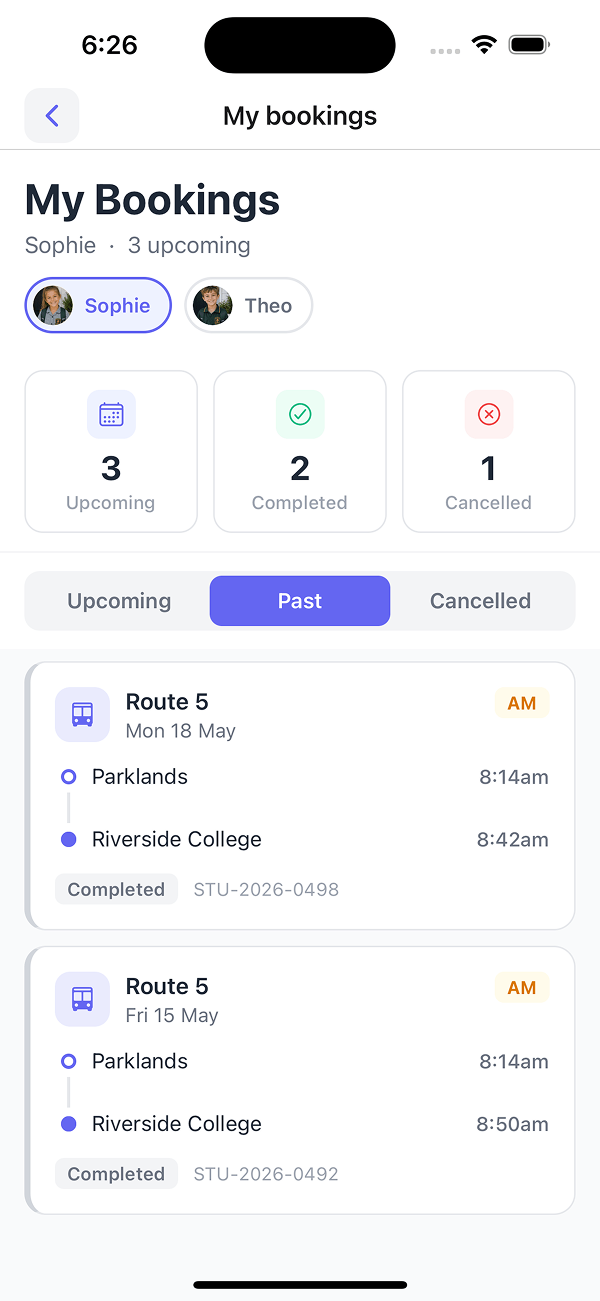
Every completed trip is retained with the same detail as the upcoming view, so parents can self-serve attendance queries.
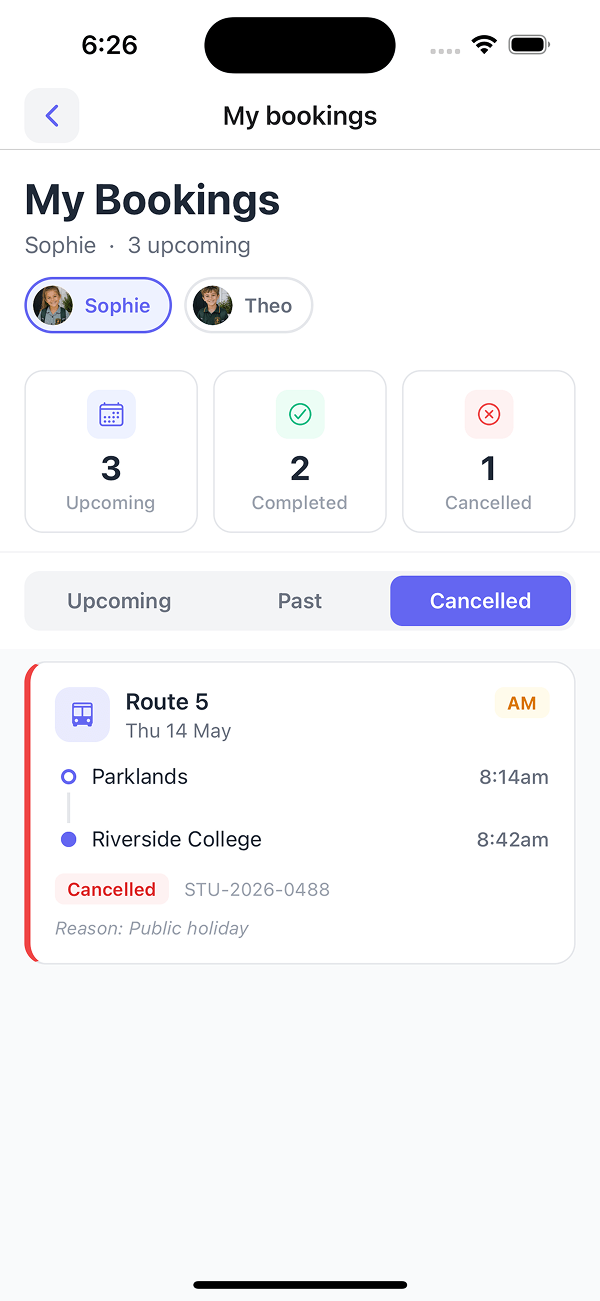
Public holiday, parent cancellation, or operator cancellation -- the reason is captured against each cancelled trip.
When a service is held, delayed, diverted, or cancelled, dispatch logs the event once and sends the notification. Only the parents of the affected students are notified.
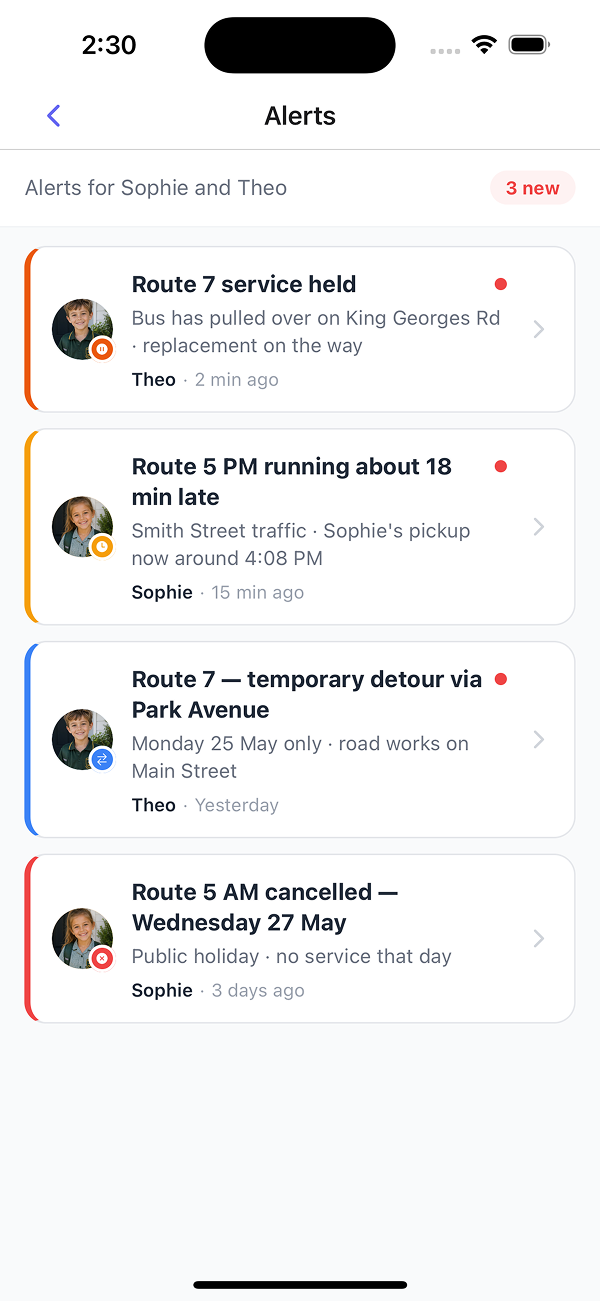
Service held, delayed, diverted, or cancelled -- shown only against the parent's own children. No noise from unrelated services.
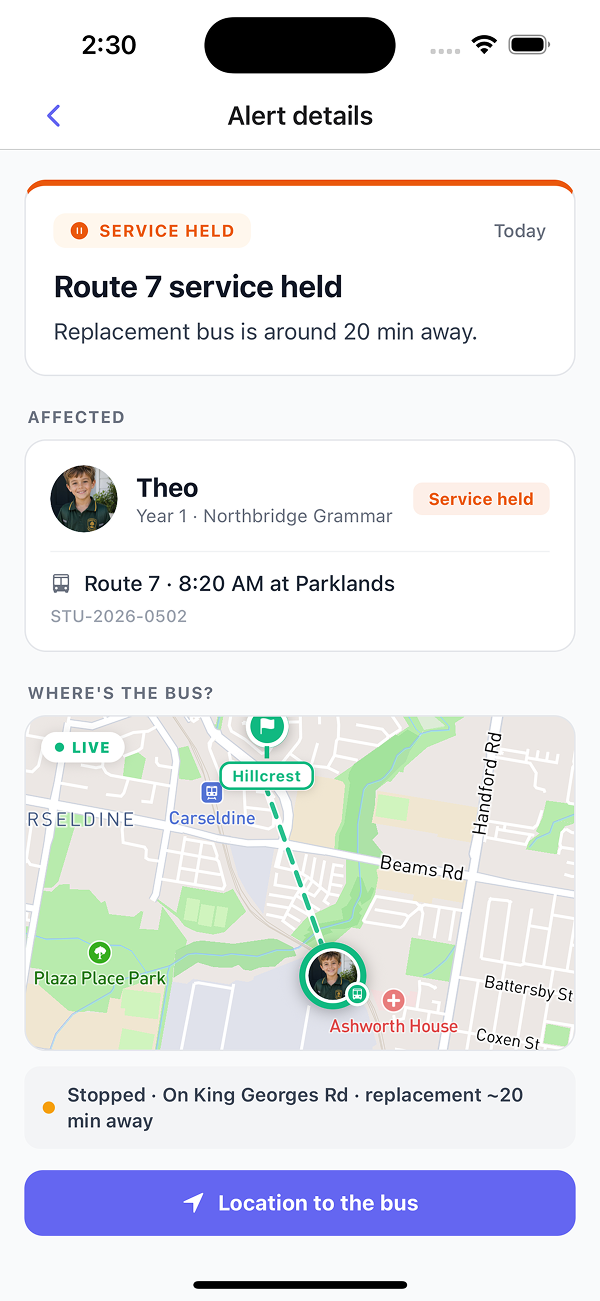
Replacement bus ETA, live position of the affected bus, and one-tap directions. Parents have what they need, so fewer of them phone dispatch.
Each student's bus on the map in Busable Go, with the ETA, the route, the driver and the stop times, from the same GPS feed your dispatch uses. Shown here in the parent's view.
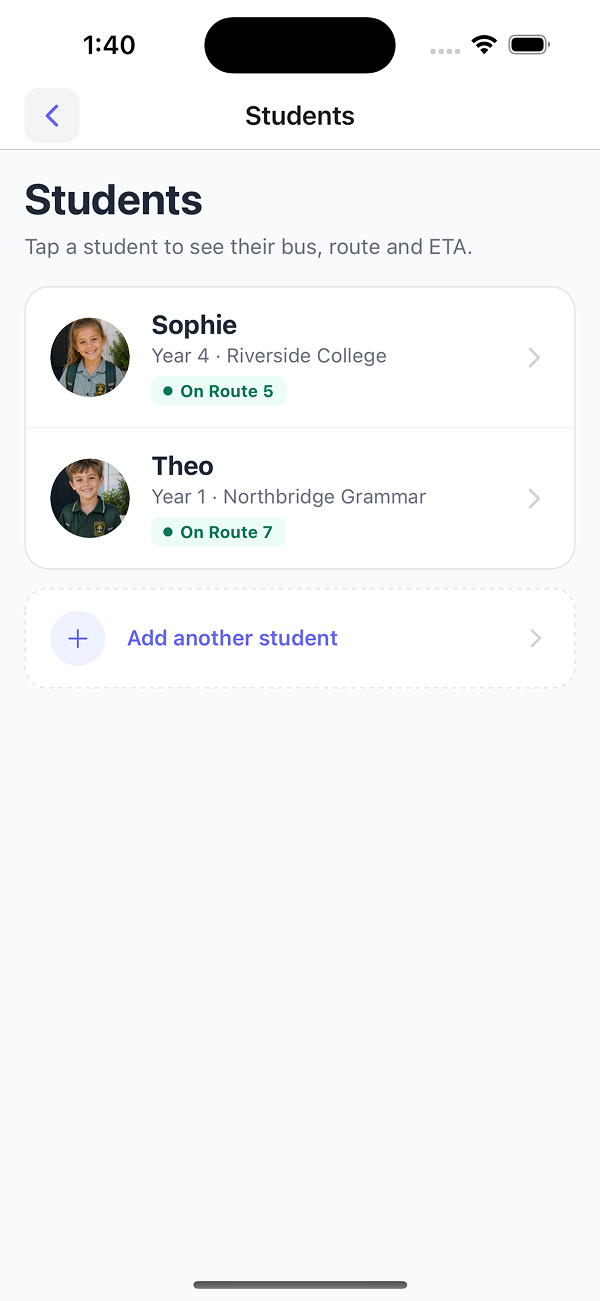
Each child appears with their assigned service. Tap a student to follow the bus on the map.
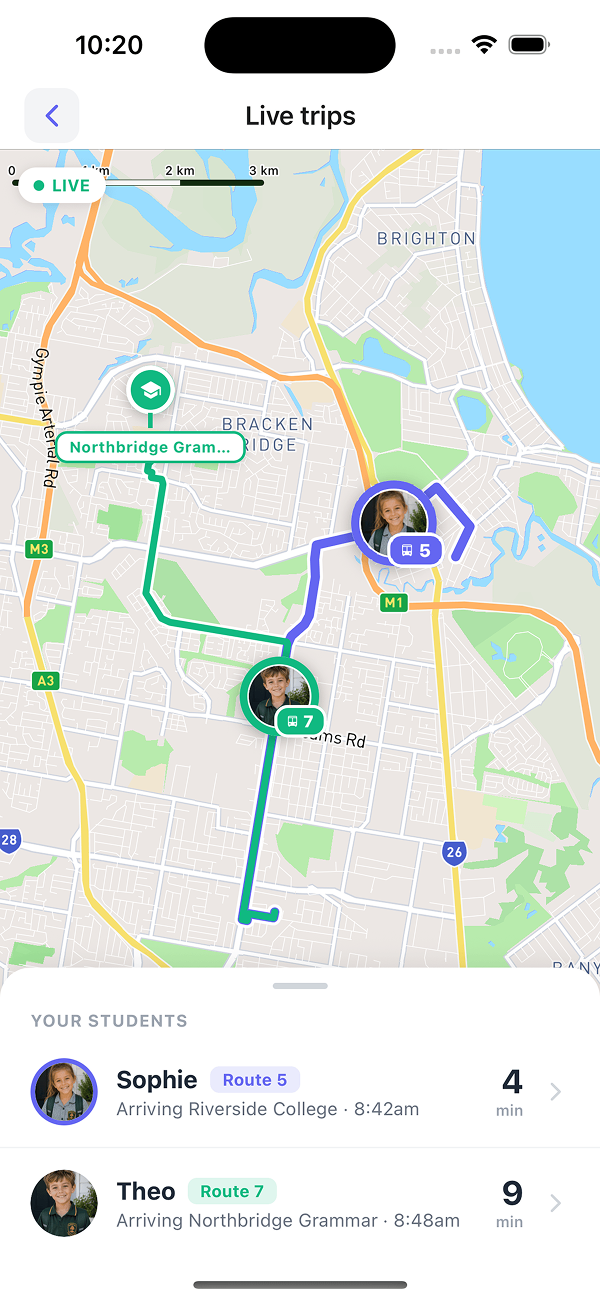
ETAs update in real time as the buses run. Multiple children on multiple routes shown on a single screen.
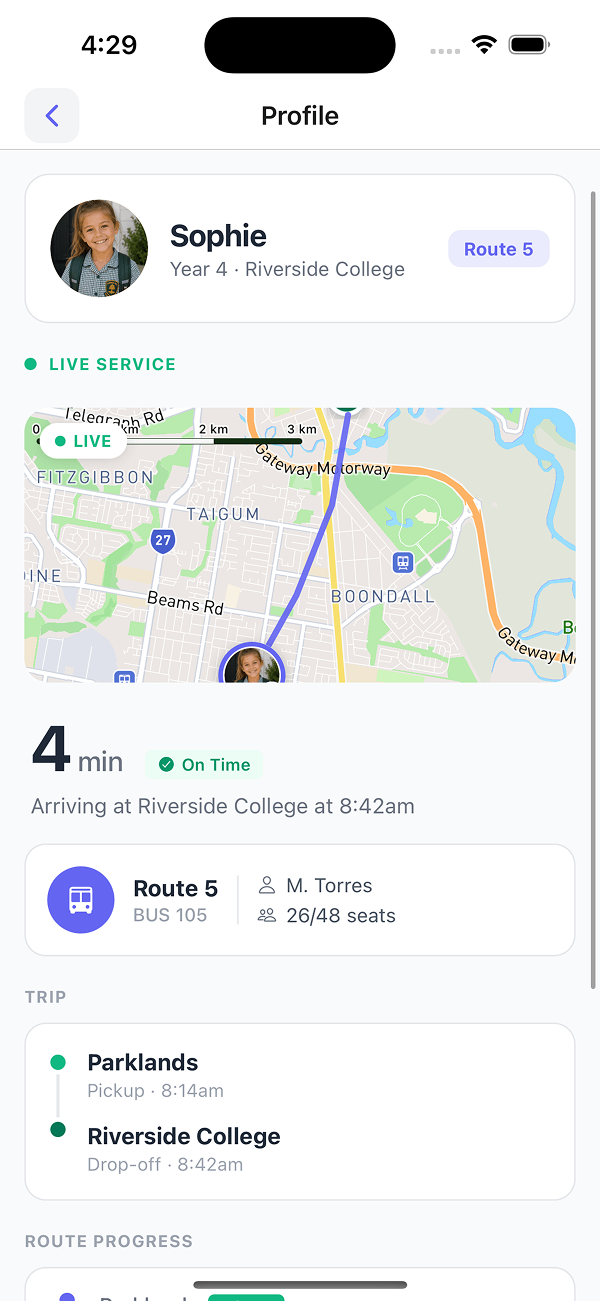
Route, bus number, driver, seat occupancy, on-time status, and stop-by-stop progress -- the same operational view your dispatch has.
The school sees every service running into the campus, then drills into a single service for boarding status per student.
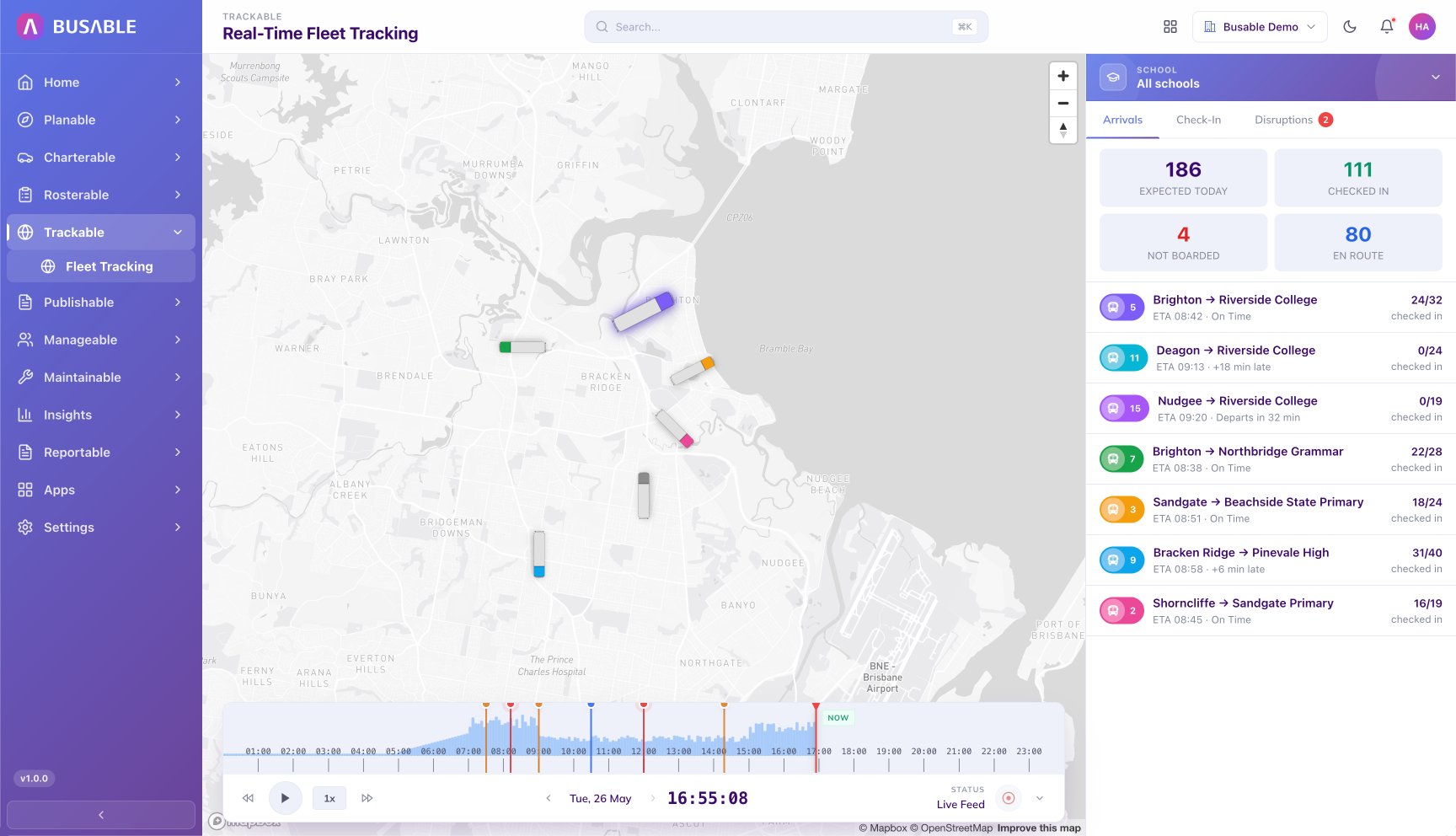
Expected, checked in, not boarded, and pickup counts for every service into the campus. Each row updates as the buses run.
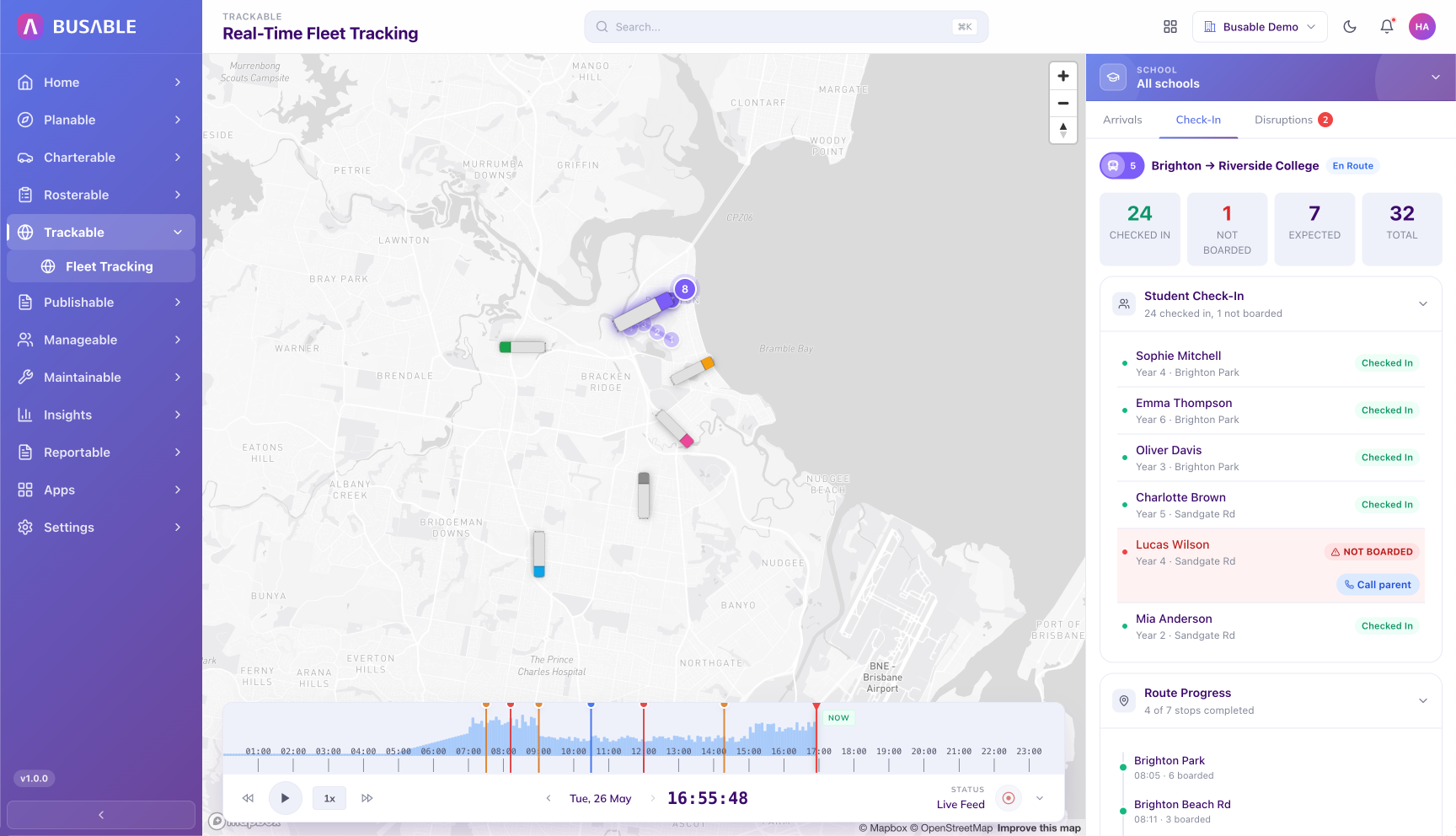
Drill into a single service for the named passenger list -- who has checked in, who has not, and route progress. The school office can contact flagged parents directly from the row.
Boarding rates, AM/PM peaks, no-shows, and per-service utilisation across the school's services. Supports route review and consolidation discussions.
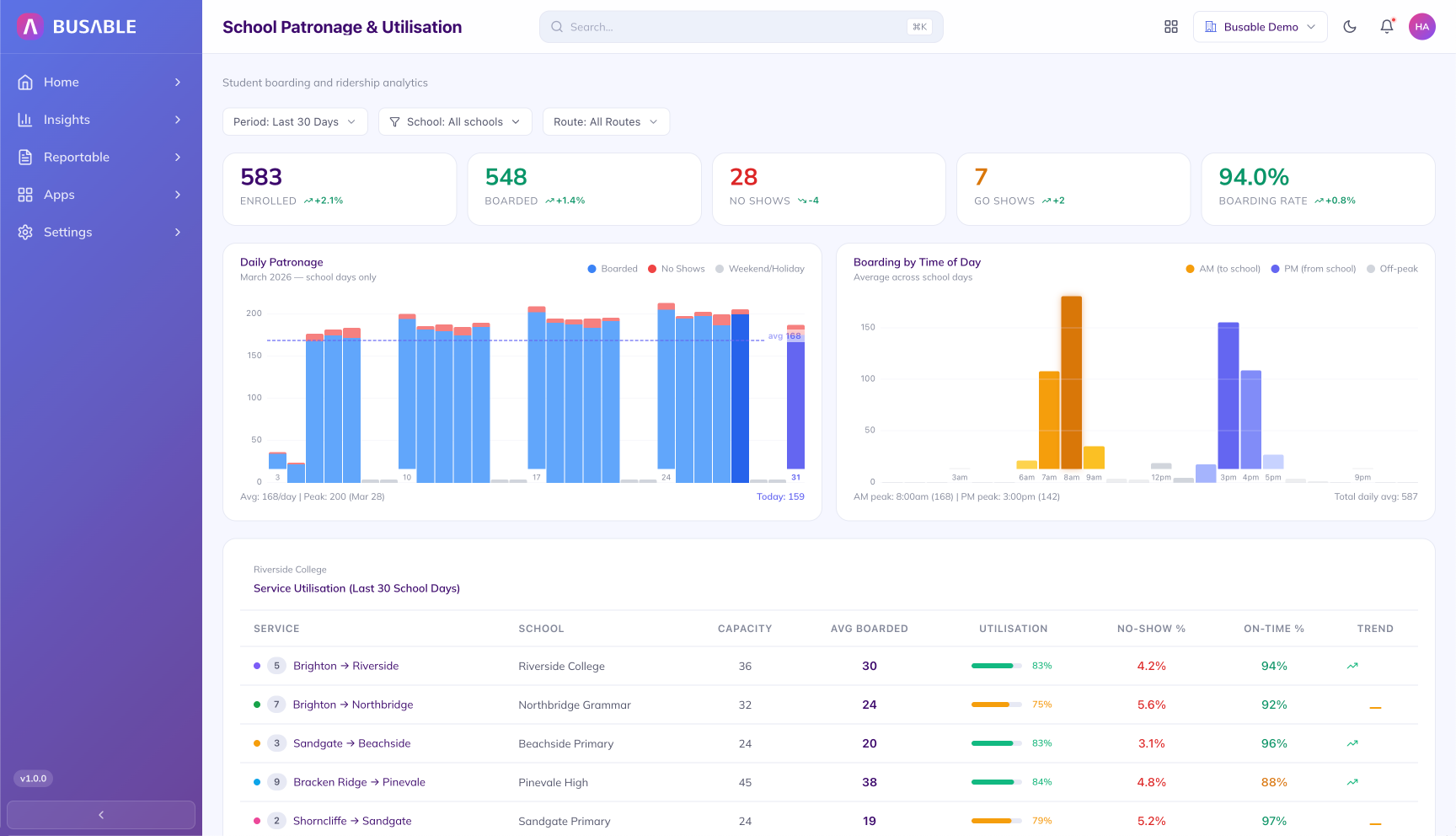
Enrolled, boarded, no-shows, and go-shows for the selected period, with daily patronage and AM/PM boarding charts. The service utilisation table breaks down on-time rate and load per route. Period and route filters at the top of the screen.
See your SSTS file as a list of decisions, one student at a time, before the next round of checks with schools.
Book a demo